Google Forms is a great platform for collecting student
data through assessments, surveys, or other evaluations. If you are
interested in getting started with using Google Forms with your class,
check out the video below. Here is a
great link on 85 great uses of Google Forms in the classroom.
Monday, December 31, 2012

Monday, December 24, 2012
Groups for Google Drive Document Sharing
Many questions have been asked about creating a group of students to Google accounts to make sharing multiple documents with the same group easier. The steps for how to do this are listed below in the handout.
Group Creating in Google Drive
Monday, December 17, 2012
SMART Tools, Widgets, and 3D Objects
Here is the handout from the SMART session in November. If you have any trouble downloading or using the newer widgets or 3D objects, let me know and I can offer assistance. Thanks!
SMART Tools, Widgets, and 3D Objects
Monday, December 10, 2012
Monday, December 3, 2012
"Storage Wars"
For those of you who attended the Storage Wars session last Monday I
have added the video we shared during this session and a copy of the
Presentation we went through below. Thank you for attending!
GCF Video Reviewing Google Drive Organization and Searching Tips:
Presenation from Storage Wars Session:
GCF Video Reviewing Google Drive Organization and Searching Tips:
Presenation from Storage Wars Session:
Monday, November 26, 2012
Monday, November 19, 2012
Widgets Revisited
Widgets are small, customizable applications that can be added to
your blog to make it more personal, interesting, or visually appealing
to viewers. Edublogs has its own widgets that you can use, however,
there are also thousands around the web for you to try.
These are especially important as your students start to use your blog for class assignments! Think of widgets as the equivalent to a lesson's "hook" --they grab the attention of your students, or in this case, viewers.
Here are some of my favorite widgets outside of Edublogs. My suggestion is to use a "junk" email when signing up to use some of these!
Feedjit: This is a widget that can be added to blogs and wikis, or personal sites to track viewers and count views. This is especially motivating for students- they realize they have an authentic audience that is not just their teachers and parents. It is also helpful to blog owners-- see the visitors of your site! This allows for a great geography mini-lesson.
Clustrmaps: This is a similar widget, but in population map form. See where your visitors are located...again, another great time for a geography mini-lesson!
BrainPOP: This website also has a few great widgets! BrainPOP has embeddable videos, and small widgets that can decorate your page.
These are especially important as your students start to use your blog for class assignments! Think of widgets as the equivalent to a lesson's "hook" --they grab the attention of your students, or in this case, viewers.
Here are some of my favorite widgets outside of Edublogs. My suggestion is to use a "junk" email when signing up to use some of these!
Feedjit: This is a widget that can be added to blogs and wikis, or personal sites to track viewers and count views. This is especially motivating for students- they realize they have an authentic audience that is not just their teachers and parents. It is also helpful to blog owners-- see the visitors of your site! This allows for a great geography mini-lesson.
Clustrmaps: This is a similar widget, but in population map form. See where your visitors are located...again, another great time for a geography mini-lesson!
BrainPOP: This website also has a few great widgets! BrainPOP has embeddable videos, and small widgets that can decorate your page.
Monday, November 12, 2012
Embedding Videos, Docs, Calendars, & other Widgets in your Blog
Watch the video below to see how to add objects with an embed code to your blog posts and pages.
Monday, November 5, 2012
Scribd Document Embedding
Scribd is one way to add a viewable document to your page.
To use Scribd:
Sign-up for an account
Upload your document
Get the document embed code
Paste the embed code into your blog using the HTML Tab
Embedding Videos From YouTube Into Your Blog
Monday, October 29, 2012
Calibrating Your SMART Board
Here is a tip in calibrating your SMART board more precisely using a SMART board pen.
Glide the pen lightly to the mark
Press pen down firmly on mark
View the video below to see a demonstration of this:
Monday, October 22, 2012
Monday, October 15, 2012
Embedding
Here is the reference page we made for creating links to documents and embedding objects within your blog. In general widgets/objects with an embed code can be embedded into your blog using the HTML tab. We use scribd to generate an embed code for documents we share on our blog. Please let Megan or Allison know if you need assistance with any of this. We are happy to help!
There is a Full View button at the bottom of the window below to enlarge the view of this document if you wish.
Embedding Videos From YouTube Into Your Blog
Monday, October 8, 2012
Keyboarding Shortcuts
Thought it might be helpful to post a link for some commonly used shortcuts.
Keyboarding Shortcuts link

Keyboarding Shortcuts link
Monday, October 1, 2012
Monday, August 13, 2012
Friday, August 10, 2012
Tuesday, April 24, 2012
Technology Tips 4/24/12
Website of the Week #1:
IXL IXL Math This site is a collection of math
resources that can be used online.
Quizzes and activities are matched to math standards, giving students
questions to solve, and explanations for when their answers are incorrect. This is great for all students- those who
want to get ahead, and those who need some remediation and practice.
Website of the Week #2: KET-Teachers' Domain www.teachersdomain.org Teachers' Domain is a free site where you’ll
find thousands of media resources, support materials, and tools for classroom
lessons, individualized learning programs, and teacher professional learning
communities. You can search lessons by
subject and grade! You can also search
special collections that they offer, which include a KET STEM Collection. *You do have to sign up for an account, but
it is free to do so!
Thursday, April 19, 2012
Student Choice
 Educators know that best practice indicates that we help students feel ownership in the classroom. One way we do this is by offering varied activity choices to meet their learning styles and preferences. This is the PERFECT place to add technology!
 For example: you have students building schema by reading articles and completing comprehension pages before a major, hands-on project. BORING! Make this more engaging and meaningful to students by adding in choices. In one station, students can listen to the articles aloud on an iPod while completing their comprehension page. In another station, students can be on your blog or interactive site working through activities related to the content. In a third station, have a video that visually presents the content.
It may take a little more time to plan and prepare, but your students will be thankful for the transitions and change. In addition, adding something like an iPod to read aloud articles to students helps with differentiation and reading fluency!
How can you make your most monotonous lessons more engaging and varied for your students?
Tuesday, April 17, 2012
Tuesday Tips 4/17/12
Website of the week #1: The Week in Rap:http://theweekinrap.com is a great resource to review all of the biggest news stories of the week. A new one is released every Friday. It is a great, fun, way for students to learn about all the happenings. There are many activities that can you do with this. One activity would be to have the students research the topic more in-depth and share their findings with the class or on a blog.
Website of the week #2: Pics4Learning: http://pics4learning.com is a copyright-friendly image library for teachers and students. The Pics4Learning collection consists of thousands of images that have been donated by students, teachers, and amateur photographers. Unlike many Internet sites, permission has been granted for teachers and students to use all of the images donated to the Pics4Learning collection. It is great resource for students, especially if they are creating powerpoints, digital stories, or movies.
Tuesday, April 10, 2012
Tuesday Tips 4/10/12
Website of the Week #1: Wifitti http://wiffiti.com/
Bring texting alive by allowing students to send in a message for immediate viewing by the entire class on the Smart Board. Wifitti is a digital bulletin board that allows students to text in their messages for immediate viewing. This is excellent for brainstorming activities, answers to homework, group work discussions, student reflections, etc. Once you create a screen, students can post messages to it anytime and anywhere as long as they have their cell phone. Those without cell phones can post to the site using a computer.
Website of the Week #2: Prezi http://prezi.com
Are your students getting bored with taking notes from PowerPoint? Prezi is a web tool that brings presentations to life! It is a much simpler and fancier version of PowerPoint. PREZI allows you to create unbelievably dynamic presentations. In the classroom, Prezi allows you to explore concepts, diagrams and timelines and the zooming capabilities helps the student understand the main focal point. You can also incorporate supplemental material such as images and videos very easily. It lets you create a sort of walking path through your presentation that makes it engaging and striking.
Tuesday, April 3, 2012
Tuesday Tips 4/3/12
Widgets: Feedjit and Clustrmaps: http://feedjit.com/
Feedjit is a widget that can be added to blogs and wikis, or
personal sites to track viewers and count views. This has been especially motivating for
students- they realize they have an authentic audience that is not just their
teachers and parents. Students can also
view population maps and world maps showing where their visitors are from. This allows for a great geography
mini-lesson. I recommend signing up
using a spare email address, just in case of ads sent via email. This can be viewed on this blog!
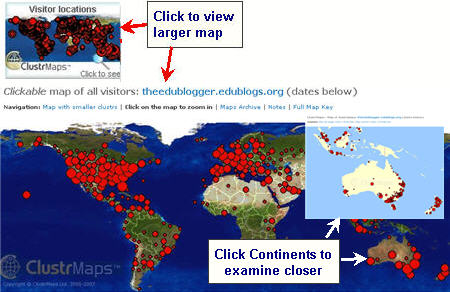
Clustrmaps is
also great for the same purpose: http://www.clustrmaps.com/index.htm
The website provides instructions for
embedding the widget into your site!
Tuesday, March 27, 2012
Tuesday Tips 3/27/12
Flipbook is a web tool that allows teachers and students to
create a digitally animated flipbook and then share it with the world. It is
easy to create and is lots of fun to work with. Besides the obvious art
implication, Flipbooks might be a great creative way for Middle School students
(or teachers) to animate a historical event, show the visual representation of
how to do a math equation, show a scientific process, or even retell a scene
from a book.
Website/Program of
the week #2: Snag Learning: http://snaglearning.com
 Snag Learning is a good resource for teachers who would like
to use high-quality documentaries in their classrooms, but don't have the funds
to purchase DVDs. On the website you can
browse through the videos by subject or by grade level. Snag Learning also
offers a series of guiding questions for each film. You can even embed previews
of each video into your blog!
Snag Learning is a good resource for teachers who would like
to use high-quality documentaries in their classrooms, but don't have the funds
to purchase DVDs. On the website you can
browse through the videos by subject or by grade level. Snag Learning also
offers a series of guiding questions for each film. You can even embed previews
of each video into your blog!Thursday, March 22, 2012
Glogster and Language Arts
Glogster, as mentioned in my technology tips, is a great digital "poster maker" for students. It can vary from being a very simple "what you see is what you get" production, or a more complex production that includes multiple pages, videos, photos, etc. It combines design skills with comprehension skills. Students must decide what information is the MOST important to put on a Glog, so that their audience understands the purpose. They must also make sure their Glog is not too busy. Here are some tips for using Glogster:

1) Edu.glogster.com is great for educators. It allows for you to create one account for students, without having to pay larger membership fees.
2) Encourage students to begin with a non-fiction piece-- as it is easier to gather small details, main ideas, and video/photos to use on the Glog.
3) Show students examples of a Glog that is too busy. In other words, it has clashing colors, a disorganized layout, and no purpose. Then, show them a well-balanced, organized, clear Glog. Have them determine the strengths and weaknesses of each. This will help them with the digital design portion of Glog creation.
4) Remind students about citing sources when they are including information that is not their own. At the very least, students should try not to copy and paste text onto a Glog and use it as their own.
5) This can be used with even young elementary students! As I said, the complexity of a Glog is up to the user... I have recently had third grade students using it!
1) Edu.glogster.com is great for educators. It allows for you to create one account for students, without having to pay larger membership fees.
2) Encourage students to begin with a non-fiction piece-- as it is easier to gather small details, main ideas, and video/photos to use on the Glog.
3) Show students examples of a Glog that is too busy. In other words, it has clashing colors, a disorganized layout, and no purpose. Then, show them a well-balanced, organized, clear Glog. Have them determine the strengths and weaknesses of each. This will help them with the digital design portion of Glog creation.
4) Remind students about citing sources when they are including information that is not their own. At the very least, students should try not to copy and paste text onto a Glog and use it as their own.
5) This can be used with even young elementary students! As I said, the complexity of a Glog is up to the user... I have recently had third grade students using it!
Tuesday, March 20, 2012
Tuesday Tips 3/20/12
 Website of the week #1: UEN.org: www.uen.org/k12student/
The Utah Education Network website houses lesson plans,
activities, and interactives for all subject areas. Teachers can either search for lessons, or go
to the student interactives on the right side of the page by grade level chunks
for activities. This site offers
activities like virtual reality content lessons that students enjoy and learn
from.
Website of the week #2: Blogger/Blogspot: www.blogger.com
 Blogger is a service provided by Google where users can
create their own blogs. Have a blog for
each class all attached to the same user, or just one blog overall. These blogs are easy to use for both teachers
and students. Blogger's website includes
tutorials on how to set up and how to use functions of its blogs. Learn how to add widgets such as site
counters, maps of site traffic, links to other activities, etc. by visiting
this ehow article.
Blogger is a service provided by Google where users can
create their own blogs. Have a blog for
each class all attached to the same user, or just one blog overall. These blogs are easy to use for both teachers
and students. Blogger's website includes
tutorials on how to set up and how to use functions of its blogs. Learn how to add widgets such as site
counters, maps of site traffic, links to other activities, etc. by visiting
this ehow article. Tuesday, March 13, 2012
Tuesday Tips 3/13/12
Website of the week #1:ABCteach: www.abcteach.com
This website is very user-friendly and offers quality
printable materials for teachers. The
website offers free worksheets available for download and also has ready to use
interactive Smart Notebook files. Once
you select your grade level and subject, you will find lots of great
resources! If you use the materials and
want more of a selection, you can even become a paid member and enjoy over
40,000 free printable worksheets, more Interactive lessons, and several other
abc tools.
Website of the week #2: Xtranormal: www.xtranormal.com
Xtra Normal is a unique service that enables students to
create animated, narrated movies just by typing the dialogue then dragging and
dropping characters and set elements into the movies. I know computer time is limited, but this
website is very easy to use. The
text-to-movie function is great for a quick engaging lesson. It should only take a student 15-30 minutes
to create an Xtranormal movie, if they have already planned the script!
Friday, March 9, 2012
Typewith.Me for Writing Collaboration

This is a great tool for writing brainstorming, collaborating on a speech, debates, reflections on class objectives, revising work, improving writing "hooks," and many more possibilities!
Tuesday, March 6, 2012
Tuesday Tips 3/6/12
Website of the week #1:
Wall Wisher:
This site is a digital bulletin board where the students can
add notes. It is excellent for short
post-its about objectives for the day, opinion questions, factual recall,
polling students, etc.
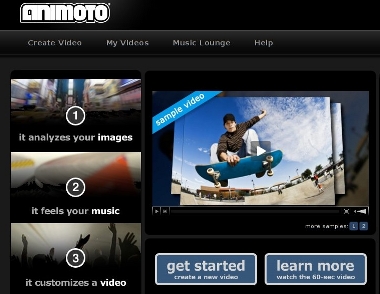
Website of the week #2:Animoto:
Animoto is an easy to use video creator where students can
add photos, music, and text to pre-made templates. This is excellent for book summaries, photo
journals, class presentations, etc.
See examples of how it is used in 5th grade on www.mrspreisclass.blogspot.com,
and on the website itself.
Saturday, March 3, 2012
Google SketchUp
An excellent way to blend STEM and reading is through Google
SketchUp. As we know well, one major
(and enjoyable) part of reading is visualization. In more complex stories, this can be quite
difficult, especially at the elementary and high school level. One challenging way for students to visually
represent their reading is through Google SketchUp --a free architectural
design program that is usable by young children to professionals. From Hogwarts castle, to the Hunger Games
arena, reading can truly come alive.
Students can go even further in depth by creating the setting for a
short story! The picture with this is an
example of a person's rendition of a castle.
Imagine Hogwarts!
Friday, March 2, 2012
 What is Pinterest? -Pinterest is a set of virtual bulletin boards. Users may "pin" photos or videos onto different boards they have created. Popular boards are for recipes, tools for teachers, DIY projects, fashion, and many more.
How does Pinterest work? The first step is signing up- which requires an invitation from another member, or a short waiting period from the Pinterest administrators. You can login using your email, or via your Facebook account.
 Next, you create your boards--which can be for any topics that are interesting to you. In this case, tools for teaching is a good idea.
Your final step is to start pinning. If you login using your Facebook account, you can immediately connect with "pins" from your friends. Otherwise, Pinterest supplies you with random "pinners" to follow. You can also search for "pins" --any teaching topic can be easily found!
I have already found some amazing ideas from fellow teachers. I have always believed that the best way to learn about how to become a better teacher is through collaboration!
Wednesday, February 29, 2012
Time Saver: Clicker Systems
A mastered technology tool should not cause you more time, but instead, should save you time! Clicker systems, such as Turning Point, are a great example.

 Clickers offer students feedback on what they are learning, and offer teachers mid-lesson feedback on what students are grasping and what they need to revisit both individually and as a group.
Clicker systems allow students to do formative assessments and interject opinions or conclusions that are instantly recorded and scored. No more hours grading papers, no more STACKS AND STACKS of papers, and immediate reports to send home with students. Reports that the clicker systems generate can be based on whole class scores, individual student scores, question analyses, and many more.
Clickers offer students feedback on what they are learning, and offer teachers mid-lesson feedback on what students are grasping and what they need to revisit both individually and as a group.
Turning Point offers the unique ability to either pre-plan a response session (Turning Point 2010), or to use a "teachable moment" (Turning Point Anywhere), giving the teacher flexibility.
Another perk of this particular system is that Turning Point 2010 is integrated with PowerPoint, which is generally familiar to most educators.
Many clicker companies also have question banks that can be used to generate assessments.
Friday, February 24, 2012
Student Experts
 Let's face it...even if you are an instructional tech or IT expert, you can't be troubleshooting two areas at once--and we all know that when it rains it pours some days! Your best bet is to have student helpers, or experts in training! Kids learn technology quickly, and if they don't know something, they will play around until they figure it out. This is a trait that many adults have a difficult time with.
 Create a club, or at least a pair of students in your class or grade that show interest in technology that can be a teacher's back-up. This is especially effective with teachers that are your least tech savvy. These students, even at the elementary level, will help solve small dilemmas, like: how do I log in? Which browser do I use? Why won't this turn on? etc...Recognize these students by making it their classroom responsibility, or a group students can join by choice.
This builds confidence in students that may end up choosing a STEM career, and helps the technology staff prioritize and troubleshoot effectively. Try it!
Friday, February 17, 2012
What can I use a blog for in my classroom?
·
Interactive games: DO NOT underestimate this!
Your students can “play games” while actually learning and reviewing
content. They love it, and it is
educational! There are thousands
online. Just search your grade, topic +
the word interactive or game (i.e.: 5th grade polygon interactive)
·
Reading Summary:
o Tell about what you read last night
o Tell about the main character of the book you are currently
reading
o How can you connect the book you are reading to your life?
o Book Sell: “Sell” your book to a friend—why should they read it?
o Book review: write a book review of the book you just finished
reading. Was it what you expect? What
could be better about it?
·
Reading Comprehension:
o As a class, we just read _____________. In your own words, write down the sequence of
events.
o Comprehension questions: We
just read chapter ___. Do you agree or
disagree with _______ on his/her decision to ______? Why/why not?
o Read the article on __________ website. What was the main idea of this article?
o Comprehension quiz questions
·
Writing/Conventions:
o Map sentences, identify the parts of speech in a sentence—have the
first student identify the parts of speech in your sentence, and then have them
create their own for the next student.
Repeat the cycle.
o Put up past student comments (anonymously!) to use for DOL
o Writing journal prompt responses
o Writing the intro or “hook” to a writing piece, and having
classmates respond with compliments and suggestions
·
Math Equations and Problems:
o Using the order of operations, how would you solve _________ ?
List the steps you would take.
o Have the first student answer a problem with certain criteria
(two- digit multiplication, long division, adding and subtracting time,
etc). Then, have the student create a
problem for the next student to answer, and repeat the cycle.
o Giving real-life examples
of math topics (i.e.: using add/subtract time to determine when my plane will
arrive)
·
Science:
o What steps would you take to make this experiment successful?
o What questions do you have about ______?
o When doing ___________ experiment, what procedures would you use
to stay safe?
o Define: ___________ , and then write a new, related word for your
classmates to define.
o Describe the water cycle in your own words. Don’t forget to use your transitions!
·
Social Studies:
o Respond to a debate: If you were alive during the 1700’s, would
you be a loyalist or a patriot? Why?
o Define: ___________ , and
then write a new, related word for your classmates to define.
o Write a short “diary entry” from the perspective of an important
member of our history
o What would our country be like without _____________?
·
Assessment:
o Formative assessment: any of these posts can be used to gauge
where your students are in terms of understanding.
o Portfolio-type records: pull up your blog during ARCs,
conferences, data team meetings, etc. to show student work.
**Remember—if you wait until after each student that you want to respond to a post has responded to moderate comments, then students will not be able to see one another’s comments.
Thursday, February 16, 2012
ClassDojo

ClassDojo also allows for whole class and individual student reports to be printed/emailed. This is great for whole-class motivation!
The reason I love it, though, is it saves teachers from having to interrupt the flow of the class by calling out students. You are able to let students know you are aware of their behavior while multitasking. For example, while you are working with a small guided reading group, you can update the points of students working independently without interrupting your group.
Finally, it is MOBILE! You can update points from any device (phone, iPod, iPad, classroom computer, Smart-board, etc.)
I have been using the site for about a week now, and my students are still engaged. It is a MUST SEE website for educators.
Wednesday, February 15, 2012
Assessing Blog/App Use
The question that is always on an educator's mind is: how do we hold students accountable for this? Blog activities and comments, and device app use are areas that are particularly difficult to assess.
First, you should always have a few activities on your blog or device that will NOT be assessed-- at least not in terms of a grade for students. In order for students to feel that the technology is their own, and a safe place to learn and explore, they should have places to go where they will not be judged. This can be in the form of educational games that reinforce content, opinion sharing about a class topic, opportunities to post photos, etc.
Ways to assess app use or blog use:
 1) Reflection: Have students, depending on their ability level and the topic, reflect on what they did on the app/blog. Require them to state a new piece of knowledge they attained!
Example: On the CNN Student News video podcast you watched today, the 2010 BP oil spill was discussed. What are your thoughts on the progress that has been made in the Gulf clean-up process?
2) Rubric: Make a short, brief rubric for your more important posts that you want students to comment on (this most likely would be useful for blogs only). See example in the image. Hint** -Rubistar!
3) Score Share: on games or activities that give scores, require students to write down and/or show you (or a teacher helper) their score on the activity.
4) Partner Share: think-pair-share just as you would on a classroom activity. If you want record of this, have students write it down, or comment on the post it applies to.
Additional Links: Bloom's Digital Taxonomy
First, you should always have a few activities on your blog or device that will NOT be assessed-- at least not in terms of a grade for students. In order for students to feel that the technology is their own, and a safe place to learn and explore, they should have places to go where they will not be judged. This can be in the form of educational games that reinforce content, opinion sharing about a class topic, opportunities to post photos, etc.
Ways to assess app use or blog use:
 1) Reflection: Have students, depending on their ability level and the topic, reflect on what they did on the app/blog. Require them to state a new piece of knowledge they attained!
Example: On the CNN Student News video podcast you watched today, the 2010 BP oil spill was discussed. What are your thoughts on the progress that has been made in the Gulf clean-up process?
2) Rubric: Make a short, brief rubric for your more important posts that you want students to comment on (this most likely would be useful for blogs only). See example in the image. Hint** -Rubistar!
3) Score Share: on games or activities that give scores, require students to write down and/or show you (or a teacher helper) their score on the activity.
4) Partner Share: think-pair-share just as you would on a classroom activity. If you want record of this, have students write it down, or comment on the post it applies to.
Additional Links: Bloom's Digital Taxonomy
Monday, February 6, 2012
Thoughts on Digital Citizenship....Appropriate Consequences
What do most teachers do when a student does something inappropriate on a computer or device? ...scold the student and remove them from the situation.
In my opinion, that is the same is sending a student out into the hall with nothing to do. I think we can do better!
First of all, students NEED technology. It will be an essential and integral part of their personal and professional lives. Secondly, it is our job to TEACH students how to behave and be respectful with technology, just as it is in the classroom.
Unless the misconduct is severe, I urge teachers to try a different approach to managing technology behavior.
Try this instead:
-Have the student create a media presentation to give to younger students on anti-cyberbullying/digital citizenship....and have them actually present it!
-Have the student video a role-play/skit on appropriate internet behavior.
-Have the student "Google" himself/herself, and describe to them what may show up on their internet history for future employers. Share with them news stories of people who lost jobs due to internet behavior.
-For students who mistreat devices, have them spend some time cleaning and caring for the equipment...i.e., wiping screens, adding plastic shields or covers, virus protection, etc.
In my opinion, that is the same is sending a student out into the hall with nothing to do. I think we can do better!
First of all, students NEED technology. It will be an essential and integral part of their personal and professional lives. Secondly, it is our job to TEACH students how to behave and be respectful with technology, just as it is in the classroom.
Unless the misconduct is severe, I urge teachers to try a different approach to managing technology behavior.
Try this instead:
-Have the student create a media presentation to give to younger students on anti-cyberbullying/digital citizenship....and have them actually present it!
-Have the student video a role-play/skit on appropriate internet behavior.
-Have the student "Google" himself/herself, and describe to them what may show up on their internet history for future employers. Share with them news stories of people who lost jobs due to internet behavior.
-For students who mistreat devices, have them spend some time cleaning and caring for the equipment...i.e., wiping screens, adding plastic shields or covers, virus protection, etc.
Friday, February 3, 2012
iPods in the Classroom
When thinking of using iPods (or any other handheld device!)--many questions arise.
-Who pays for the Apps? Do I use them for the whole class or in small groups? Should the students share headphones? Where do I find the best inexpensive Apps? What if students try to get on something they shouldn't be on? How do I hold students accountable? Where in the WORLD did all that ear wax come from? ...and many more!

My suggestion is to start off small. Before using the device in your classroom, YOU need to use it first. Download some free Apps, and begin your search for the Apps you want in your lessons. Make sure you experience the App first!! Many Apps seem educational, but really end up being simple, non-instructional games.
Next, set some ground rules. Make sure your students understand that using the device is a privilege not a guarantee. Set your expectations high, and set clear consequences for misuse. Try to think about the most effective way for students to understand digital citizenship...see my next post to hear more about this.
Think of how you want to assess students! Holding them accountable keeps them focused, and less likely to stray from your instructions. Think...reflections, rubrics, short formative assessments, partner-share, etc.
If you are apprehensive about using the devices in your classroom, start off with a small group of students. For example, high school students can watch History Channel depictions of an event they are learning about in their history class, or elementary students can play Madlibs to learn parts of speech. You will probably find that your students either already know how to use the device, and are a few steps ahead of you :)
-Who pays for the Apps? Do I use them for the whole class or in small groups? Should the students share headphones? Where do I find the best inexpensive Apps? What if students try to get on something they shouldn't be on? How do I hold students accountable? Where in the WORLD did all that ear wax come from? ...and many more!
My suggestion is to start off small. Before using the device in your classroom, YOU need to use it first. Download some free Apps, and begin your search for the Apps you want in your lessons. Make sure you experience the App first!! Many Apps seem educational, but really end up being simple, non-instructional games.
Next, set some ground rules. Make sure your students understand that using the device is a privilege not a guarantee. Set your expectations high, and set clear consequences for misuse. Try to think about the most effective way for students to understand digital citizenship...see my next post to hear more about this.
Think of how you want to assess students! Holding them accountable keeps them focused, and less likely to stray from your instructions. Think...reflections, rubrics, short formative assessments, partner-share, etc.
If you are apprehensive about using the devices in your classroom, start off with a small group of students. For example, high school students can watch History Channel depictions of an event they are learning about in their history class, or elementary students can play Madlibs to learn parts of speech. You will probably find that your students either already know how to use the device, and are a few steps ahead of you :)
Wednesday, January 25, 2012
Fluency Recording Extension
Collaboration is a key element of technology integration, so when a colleague has a great idea, SHARE IT! A colleague of mine wanted to take fluency recording a step further, to cover more content areas simultaneously. Here was her idea, explained in detail:

What if we recorded students reading THEIR OWN work out loud?
Writing teachers are constantly reminding students to revise and edit their work. Usually, we see that certain parts are not coherent, or are irrelevant, biased, etc. We encourage younger students to read their writing aloud to determine punctuation and spelling errors. If they were to LISTEN to their writing pieces aloud, they would HEAR these mistakes for themselves. A checklist is soon to come!
Tuesday, January 24, 2012
Recording Reading Fluency
 As teachers of reading, we know that fluency is necessary for students to be successful. What we often overlook are the students that know they are not fluent, but are not sure where to go from there.
 Using iPods with microphones, or a free program like Audacity, students can record and then listen to themselves read. Once they get over the uncomfortable part of listening to themselves read, they can evaluate their reading specifically. Are they too fast or too slow? Are they choppy, or monotone? They are able to answer those questions on their own!
Having students fill out a fluency checklist, or self-assessment on how they sounded allows them adequate reflection time. It also preserves a record of their reading, both for you and the student. These can be played at the end of the year, in conferences, or even passed on to future teachers of that student.
**Tip: Explain to students that they are not getting graded on their recording. This will help them be more honest in their reflections, and not as nervous when recording.
**Tip: Have students record twice-- one time cold, without having looked at the passage beforehand, and another time after practicing the passage. Compare the differences!
**Tip: Make sure students have passages at the appropriate reading level! (generally, their independent or instructional level)
Sunday, January 22, 2012
Classroom Blogs: Step 1

So, my advice is to start small. Teach students safety rules while introducing and defining blogs. Bring them into the blog design...show them great blogs, and come up with ideas on what your class' blog should look and feel like.
Next, teach them how to post comments, and have them write one of their own. Take it a step further by asking them to have someone from home or another class to comment too. This begins the community-building aspect of a blog. Keep in mind that for a blog to be a real place of learning, it needs to be open to the rest of the world. Protect the safety of your students by teaching THEM how to handle themselves. Blocking outsiders keeps students from forming an authentic audience!
Remember...it is all about COLLABORATION!
Thursday, January 12, 2012
Classroom Blogs and Motivation
Class blogs can be motivators--their own unique online community for any age of students. They can be where your students feel the most safe and comfortable when participating, but also the place where the most efficient collaboration takes place.
 The trick to using them as motivators with students is similar to how you design your classroom space. Below are some of the ways teachers can adapt their blogs to attract and welcome their students.
"Bulletin Boards" - Similar to how teachers decorate bulletin boards and door frames in classrooms, blog designs are readily available and easily creatable. On Blogger, changing your template gives your blog color and personality. Changing this can help re-attract your students' attention in the most basic way if you feel they have gotten off task.
"Shiny Gadgets" - Every child (and adult) is attracted to shiny new toys. In classrooms, that might be a new computer or iPod, or a new student! The "shiny gadgets" for blogs or other websites are called "widgets." A widget is basically a piece of code that you embed into your website that shows up as a new part. For example, you might add in a population map that shows where people are viewing from, or a "Brainpop" video bank. Adding these gives an even more personal feel to the blog, and can also help show students that they have an audience to work hard for!
Here are some great widgets for websites:
"Rearranging Desks" - Every teacher experiments many (MANY!!) different ways to arrange desks, furniture, and other equipment in a classroom to best fit student needs at the time. On a blog, this can be done by changing the layout. In other words, change where parts of your blog are placed. For Blogger, this can be done in the layout section.
THE BOTTOM LINE: Be willing to play around with how you set up your blog. Take in student suggestions, and don't be afraid you will ruin it. Blogs are meant to be customizable...which is perfect for the "individualized" education world.
Subscribe to:
Posts (Atom)